A guide for security analysts and researchers who want to leverage the power of Microsoft XDR to hunt for threats and anomalies in their environment. In this sixth blog post I will give you a deeper dive into Advanced hunting. It will show how to do advanced hunting queries in Microsoft XDR to proactively search for potential threats and suspicious activities.
As a cyber security professional, you know how important it is to proactively search for potential threats and suspicious activities in your environment. You also know how challenging it can be to find the right data, tools, and techniques to perform effective threat hunting. That's why Microsoft XDR provides you with advanced hunting, a powerful feature that allows you to craft your own queries using a rich data schema and a flexible query language. With advanced hunting, you can access and analyze data from multiple sources, such as endpoints, email, identity, cloud apps, and network, and use it to uncover hidden patterns, anomalies, and indicators of compromise. You can also use advanced hunting to create custom detections, alerts, and response actions based on your queries. In this blog post, I will show you what advanced hunting is, how it works, and how you can use it to enhance your security posture and capabilities. I will also share some of my recommendations and best practices for crafting effective advanced hunting queries in Microsoft XDR.
What is advanced hunting?
Advanced hunting is a feature in Microsoft XDR that enables you to create and run your own KQL queries to search for and analyze data from multiple sources. You can use advanced hunting to perform various tasks, such as:
Investigate incidents and alerts by querying the relevant data and finding additional evidence or context.
Proactively hunt for threats and anomalies by looking for unusual or malicious behaviors, activities, or artifacts.
Validate and test your security policies and configurations by checking for compliance or misconfigurations.
Monitor and audit your environment by tracking changes, events, or trends.
Enrich and correlate your data by joining tables from different sources and adding additional information or insights.
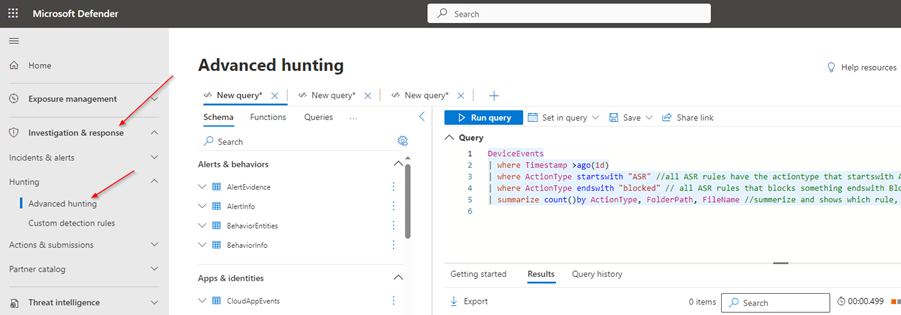
To use advanced hunting, you need to access the advanced hunting page in the Microsoft XDR portal. There, you will find a query editor where you can write and run your queries, a schema browser where you can explore the available data tables and fields, and a query library where you can browse and use predefined queries or save your own queries for future use. You can also export your query results to a CSV file or use them to create custom detections, alerts, response actions or visualize for reporting.
What is Kusto Query Language (KQL)
Kusto Query Language (KQL) is a powerful and expressive language for querying structured, semi-structured, and unstructured data. It supports additional features and operators that make it suitable for advanced hunting scenarios. With KQL, you can:
Filter, sort, group, and aggregate data from different tables and sources
Perform complex calculations and transformations on data fields
Join and union data from multiple tables and sources
Use subqueries and nested queries to create hierarchical and recursive queries
Use variables, parameters, and functions to simplify and reuse queries
Use comments, aliases, and formatting to make queries more readable and maintainable
KQL syntax consists of a series of statements, each ending with a semicolon (;). A statement can be either a query statement that returns a result set, or a control command that performs an action or changes a setting. A query statement consists of a series of clauses, each starting with a keyword and followed by an expression. The most common clauses are:
table: specifies the name of the table or source to query
|: separates the clauses and indicates the flow of data from one clause to another
where: filters the data based on a logical condition
project: selects the columns or fields to include in the result set
summarize: groups the data by one or more columns and performs aggregation functions on them
order by: sorts the data by one or more columns in ascending or descending order
take: limits the number of rows to return in the result set
Here is an example of a simple KQL query that returns the top 10 alerts by severity from the AlertInfo table in the last 24 hours:
AlertInfo
| where Timestamp > ago(1d)
| summarize count() by AlertName, Severity
| order by Severity desc, count_ desc
| take 10
This shows 5 examples of Advanced Hunting queries that demonstrate different methods of using advanced hunting:
1: All alerts the last 24 hours:
// This query returns all alerts the last 24 hours, sorted by severity
AlertInfo
| where Timestamp > ago(1d) // Filter by time range
| summarize arg_max(Timestamp, *) by AlertId // Deduplicate alerts by alert ID and keep the latest record
| project Timestamp, AlertName, Severity, DeviceName // Select the columns to display
| sort by Severity desc // Sort by severity in descending order
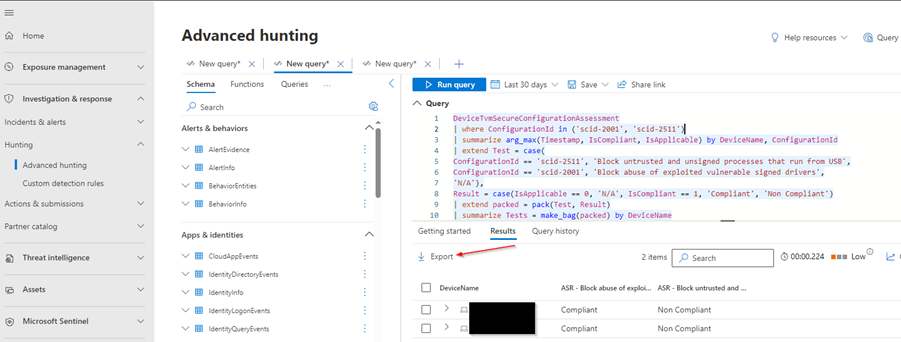
2: Devices compliance regarding 2 ASR rules:
DeviceTvmSecureConfigurationAssessment
| where Timestamp > ago(1d) // Filter by time range
| where ConfigurationId in ('scid-2001', 'scid-2511') //finding the 2 SCID to report on
| summarize arg_max(Timestamp, IsCompliant, IsApplicable) by DeviceName, ConfigurationId // Deduplicate IsCompliant, IsApplicable by devicename and keep the latest record
| extend Test = case(
ConfigurationId == 'scid-2511', 'Block untrusted and unsigned processes that run from USB',
ConfigurationId == 'scid-2001', 'Block abuse of exploited vulnerable signed drivers',
'N/A'), //finds the 2 SCID and gives a name for the columns
Result = case(IsApplicable == 0, 'N/A', IsCompliant == 1, 'Compliant', 'Non Compliant')
| extend packed = pack(Test, Result)
| summarize Tests = make_bag(packed) by DeviceName
| evaluate bag_unpack(Tests)
3: Files blocked by ASR rule:
DeviceEvents
| where Timestamp >ago(1d) // Filter by time range
| where ActionType startswith "ASR" //all ASR rules have the actiontype that startswith ASR
| where ActionType endswith "blocked" // all ASR rules that blocks something endswith Blocked
| summarize count()by ActionType, FolderPath, FileName //summerize and shows which rule, folderpath and filename that has been Blocked
4: Successfully logins from Russia
AADSignInEventsBeta
| where Timestamp >ago(1d) // Filter by time range
| where Country contains "RU" // country is Russia
| where ErrorCode == "0" // Errorcode 0 means successfull login
| summarize count()by AccountDisplayName, AccountUpn, Application, LogonType, Country, City, IPAddress // shows the UPN, Name of the User, Application, Logontype, country, city and IP address
5: Devices with critical CVSS and ExploitIsVerified (KUDOS to Steven Lim for this query)
To craft effective advanced hunting queries in Microsoft XDR, you need to have a good understanding of the data schema, the query language, and the query best practices. Here are some of my recommendations to help you get started and improve your query skills:
Review the data schema and familiarize yourself with the available tables and fields. You can use the schema browser to see the description, data type, and sample values of each field. You can also use the intellisense feature in the query editor to autocomplete the table and field names as you type.
Learn the basics of the query language and the syntax. Microsoft XDR uses the Kusto query language (KQL), which is a powerful and expressive language that supports various operators, functions, and clauses. You can use KQL to filter, sort, group, join, project, and aggregate your data, as well as to perform calculations, transformations, and analytics.
Use the query library to find and use predefined queries or to save your own queries. The query library contains a collection of queries that cover various scenarios and use cases, such as hunting for ransomware, phishing, lateral movement, or credential theft. You can use these queries as they are or modify them to suit your needs. You can also save your own queries to the query library for future use or to share them with your colleagues.
Optimize your queries for performance and efficiency. To run your queries faster and consume less resources, you should follow some query optimization best practices, such as:
Limit the time range of your query to the minimum necessary.
Filter your data as early as possible using the where clause.
Use the summarize operator to reduce the number of records and perform aggregations.
Use the join operator sparingly and only when necessary.
Use the project operator to select only the fields that you need.
Use the order by operator to sort your results only when needed.
Use the limit operator to limit the number of results returned.
You can export the data to a CSV file – that can be helpful for providing insights to operations departments without granting access to the portal.
Conclusion
Advanced hunting is a powerful feature of Microsoft XDR that allows you to craft your own queries to search for and analyze data from multiple sources. With advanced hunting, you can enhance your security posture and capabilities by proactively hunting for threats and anomalies, investigating incidents and alerts, validating and testing your security policies and configurations, monitoring and auditing your environment, and enriching and correlating your data. To craft effective advanced hunting queries, you need to have a good understanding of the data schema, the query language, and the query best practices. I hope this blog post has given you an overview of what advanced hunting is, how it works, and how you can use it to improve your security.